
PotatoHotDog Dynamic Browser Sources let you generate and play TTS (Text-to-Speech) audio directly inside OBS Studio, without writing any C# code in Streamer.bot. This guide shows you how to create a dynamic browser source, add it to OBS Studio, and trigger playback from Streamer.bot with a simple Fetch URL sub action.
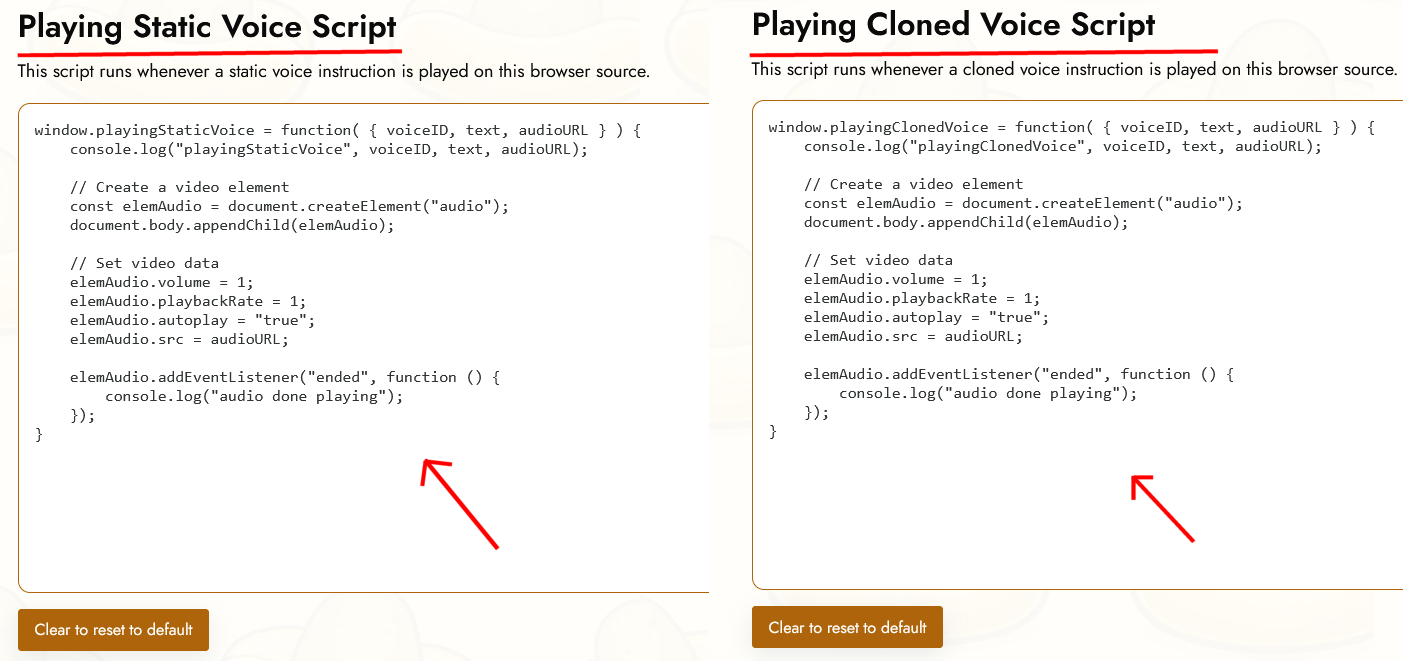
Every time the webhook request is called, PotatoHotDog automatically generates the speech using a static or cloned voice and queues it for playback on the browser source. You can further customize the behavior using the built in JavaScript editors on the browser source, such as the Playing Static Voice Script and Playing Cloned Voice Script fields.
Create a Dynamic Browser Source
Log in to your PotatoHotDog dashboard and go to the Dynamic Browser Sources page. Give your new browser source a name you will recognize later, such as "Streamer.bot TTS", then click Create.
Go to Dynamic Browser Sources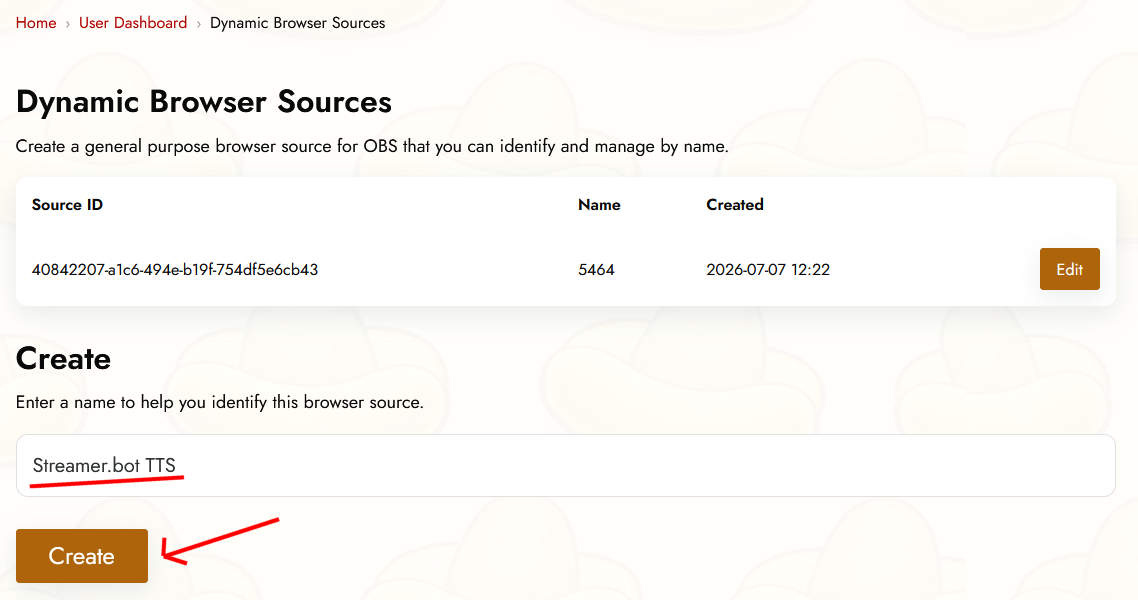
Add the browser source URL to OBS Studio
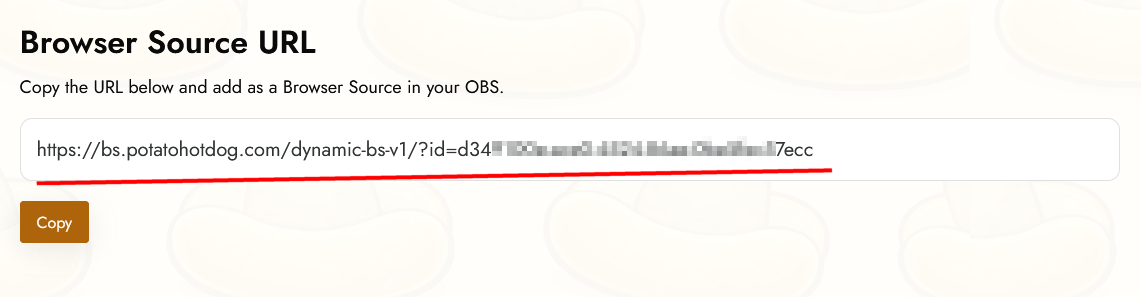
Open the browser source you just created and copy its Browser Source URL.
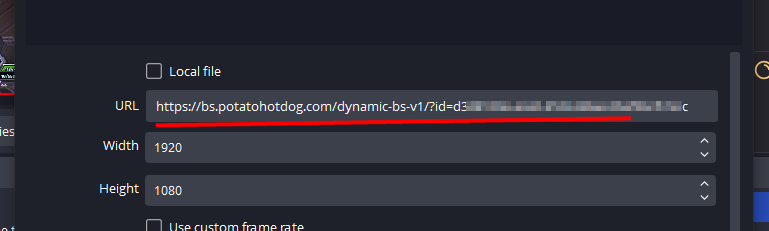
Then open OBS Studio, create a new browser source in your scene, and paste the URL in.
Prepare an API key
If you don't already have one, generate an API key from your dashboard and keep it ready, you will need it in the next step.
Go to API Keys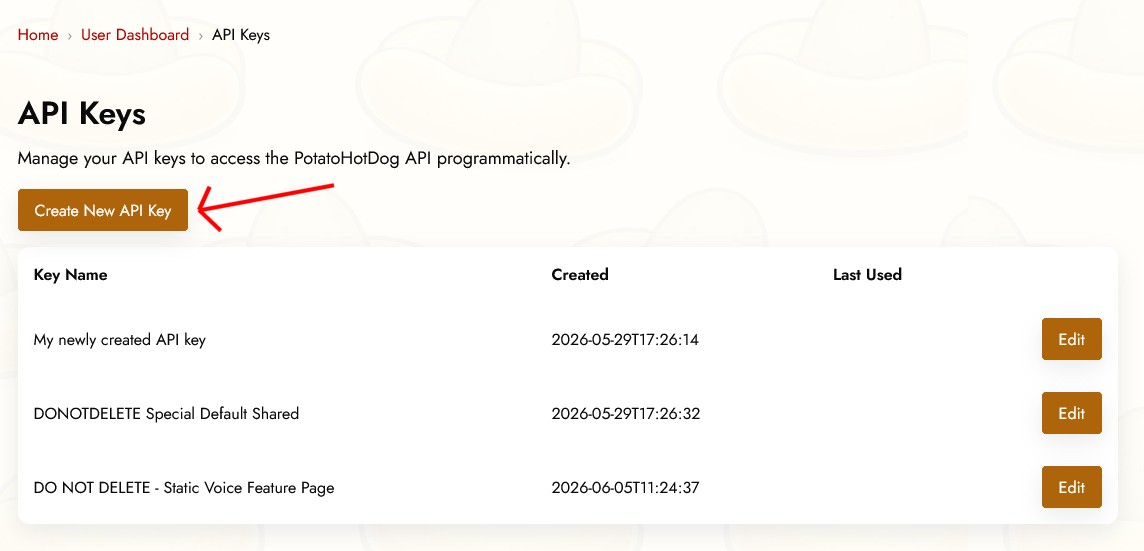
Generate the webhook request
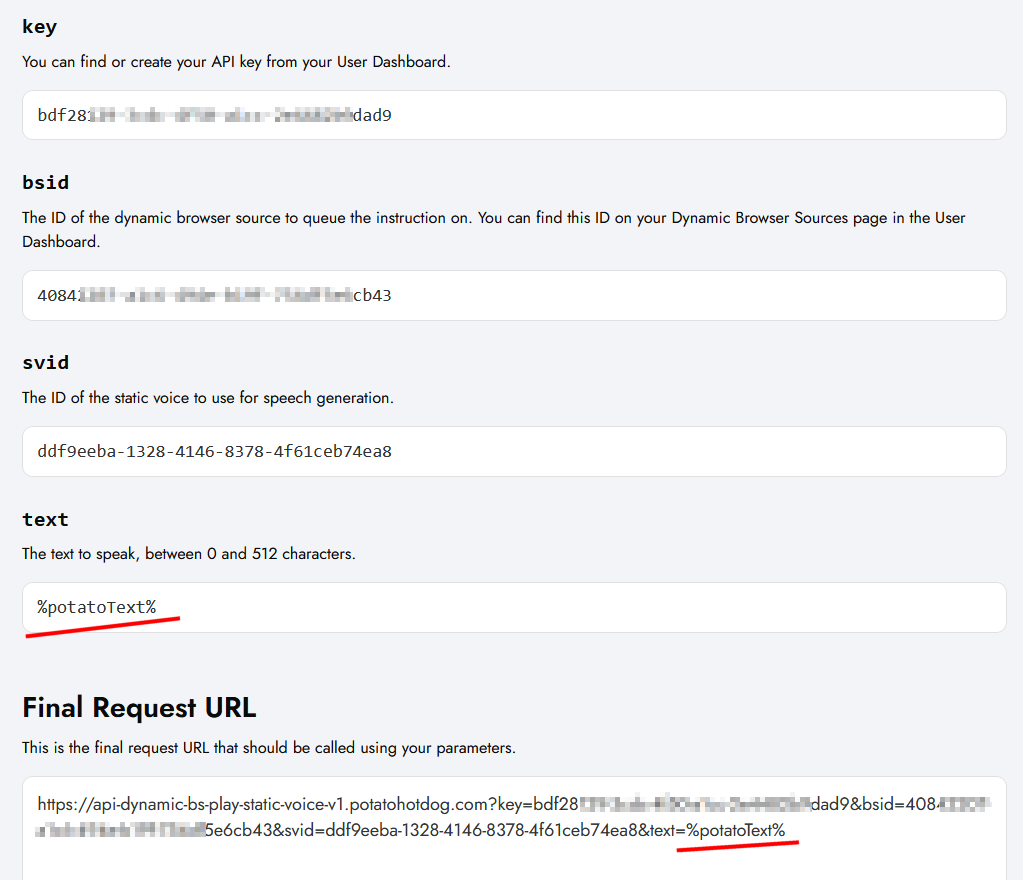
Open the Play Static Voice API page or the Play Cloned Voice API page, depending on which type of voice you want to play. Fill in your API key, your browser source ID, and the voice ID, but for the text field enter %potatoText%, which is the Streamer.bot argument you will set up in the next step.
Play Static Voice API Play Cloned Voice APIOnce every field is filled in, copy the generated request URL at the bottom of the page, you will paste it into Streamer.bot in a later step.
Create a Set Argument sub action in Streamer.bot
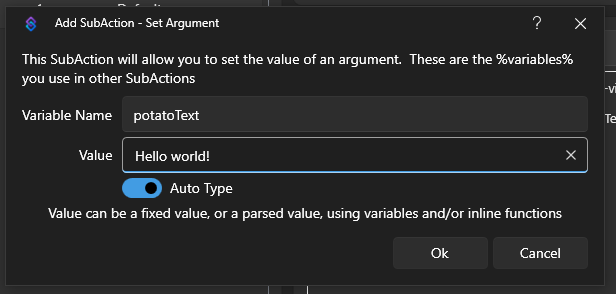
Open Streamer.bot and go to the Actions tab. Create a new action, or open an existing one, then right click on Sub Actions and select Add, Core, Arguments, and finally Set Argument.
Set the argument key to potatoText, and the value to a test message, such as "Hello world". This is the same $potatoText argument you referenced in the webhook request URL.
Create a Fetch URL sub action in Streamer.bot
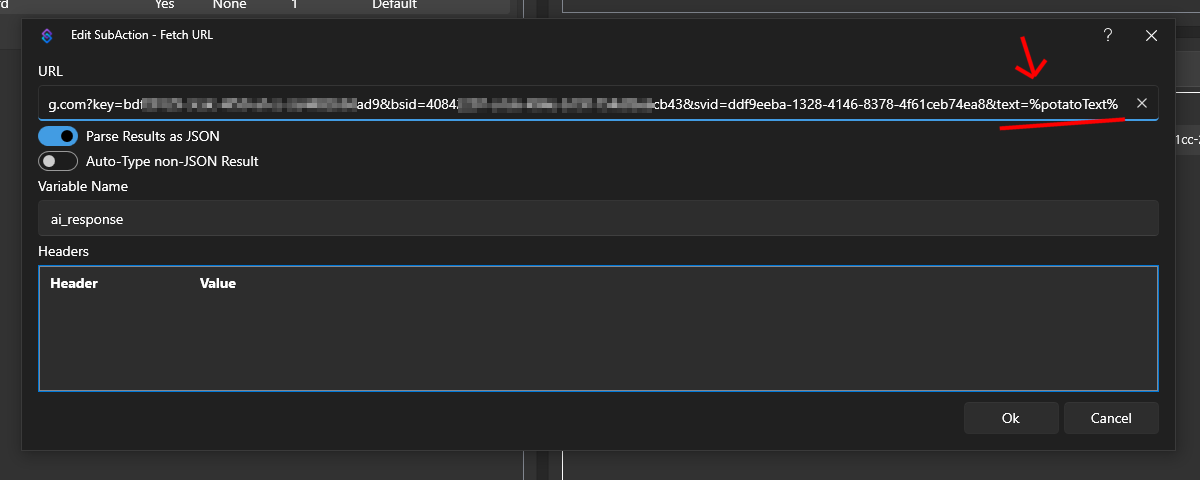
Underneath the Set Argument sub action, click Add again and this time select Core, Network, and Fetch URL. Paste in the webhook request URL you copied earlier.
Save the action, then test it. The TTS audio should be generated and played back automatically through the browser source in OBS Studio.
Additional customization
On the edit page for your dynamic browser source, you will find the Playing Static Voice Script and Playing Cloned Voice Script fields. These let you write custom JavaScript that runs automatically whenever a voice instruction is played, letting you fully customize the behavior beyond the defaults.
This guide was first published 2026-07-13 and was last modified 2026-07-13.
Other Similar Guides
Here are some other how-to guides you might find useful.


