
PotatoHotDog offers a free Generate AI Response API that lets a large language model reply to your viewers, directly from Streamer.bot, without needing any third party AI middleware or a custom script. This guide shows you how to build the request URL on our Generate AI Response API page, then call it from Streamer.bot using a simple Fetch URL sub action.
Once the request completes, the generated reply is stored automatically in a Streamer.bot argument that you can inspect via the Action History, and reuse in later sub actions, such as sending it to Twitch chat or speaking it out loud with one of our TTS guides.
Prepare an API key
If you don't already have one, generate an API key from your dashboard and keep it ready, you will need it in the next step.
Go to API Keys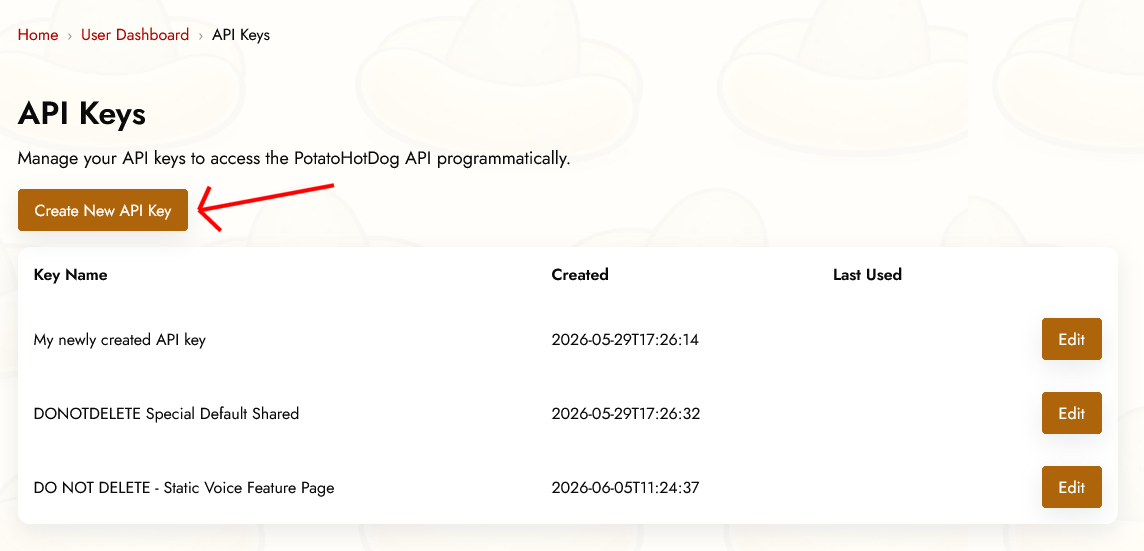
Generate the request URL
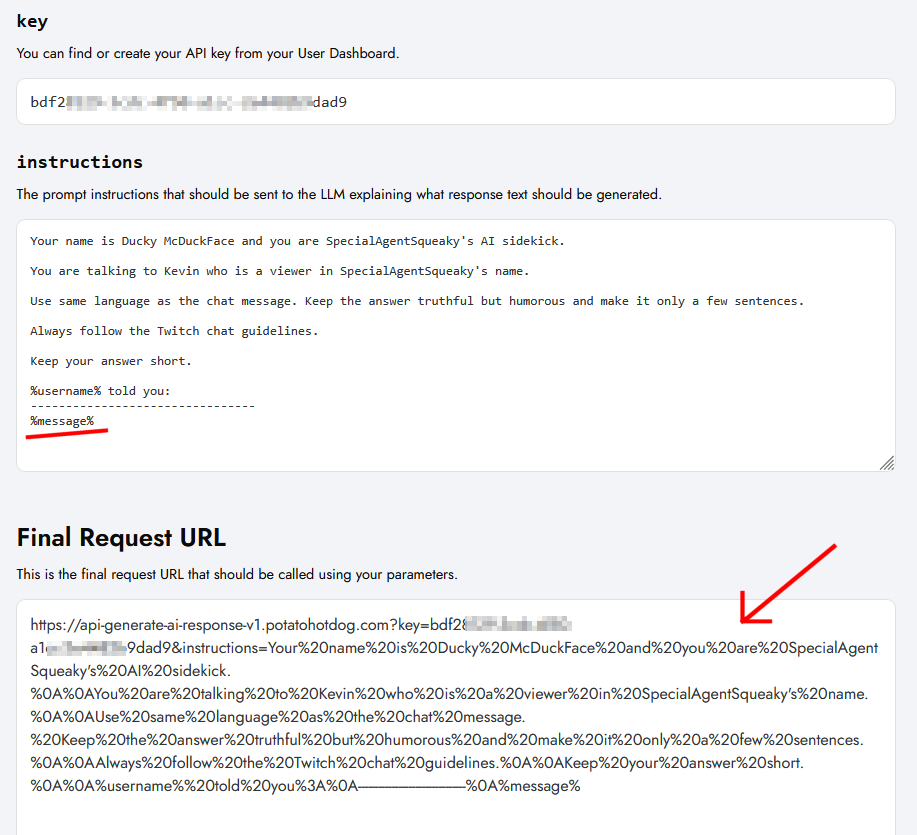
Open the Generate AI Response API page. Fill in your API key and the instructions field with the prompt you want the AI to respond to.
If you want the prompt to include dynamic values, such as the viewer's chat message, you can reference a Streamer.bot argument directly inside the instructions field using the %variable% syntax, for example %message%.
Generate AI Response APIOnce every field is filled in, copy the generated request URL at the bottom of the page, you will paste it into Streamer.bot in a later step.
Create a Fetch URL sub action in Streamer.bot
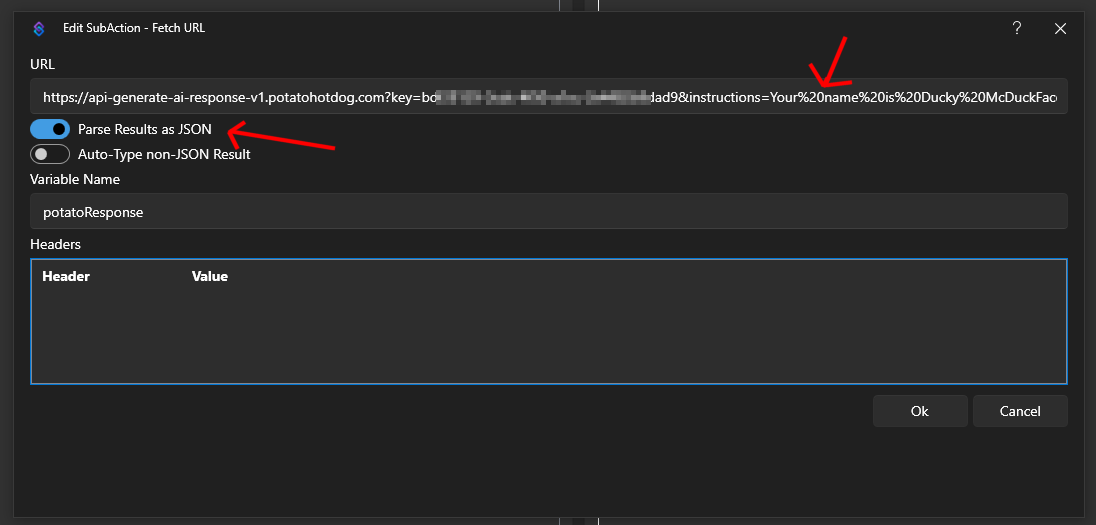
Open Streamer.bot and go to the Actions tab. Create a new action, or open an existing one, then right click on Sub Actions and select Add, Core, Network, and finally Fetch URL. Paste in the request URL you copied earlier.
Make sure to toggle on Parse Results as JSON, so the API response is automatically parsed into arguments instead of being stored as a single raw JSON string.
Also specify an output argument name, such as potatoResponse, this is the argument the AI generated response will be stored under once the request completes.
Save the action, then test it. Streamer.bot will call the API and generate an AI response using the instructions you specified.
How to read the AI response
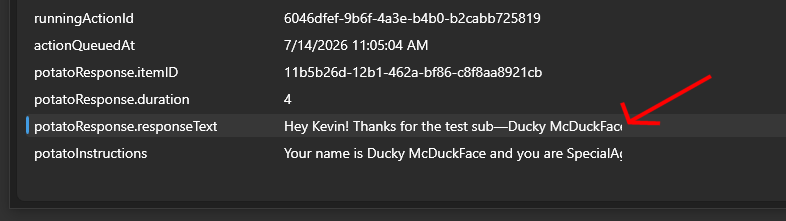
Once the Fetch URL sub action completes, the AI's generated reply is automatically added as an action argument named .responseText, appended to whatever output argument name you picked in the previous step, for example potatoResponse.responseText.
You can inspect this argument via the Action History in Streamer.bot, and reference it in later sub actions, such as sending it to Twitch chat or speaking it out loud with one of our TTS guides.
Check the logs
You can analyze and troubleshoot all your AI generated requests by going to the logs page via your user dashboard. There you can check the input and output values of every request to make sure you have configured Streamer.bot correctly.
View AI Response Logs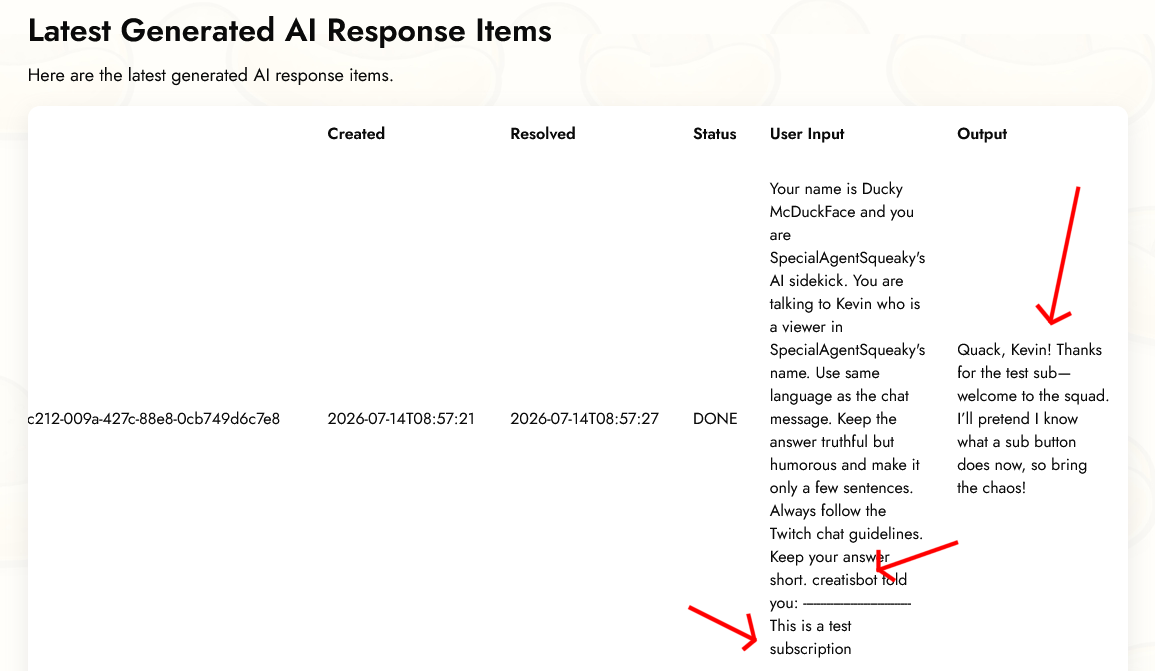
This guide was first published 2026-07-14 and was last modified 2026-07-14.
Other Similar Guides
Here are some other how-to guides you might find useful.

