
Step 1 - Copy client URL
First you need to copy the client URL. You can find your browser source URL in your PotatoHotDog dashboard.
Step 2 - Create a new scene
Next, open up your OBS Studio or Streamlabs Desktop and create a new scene.
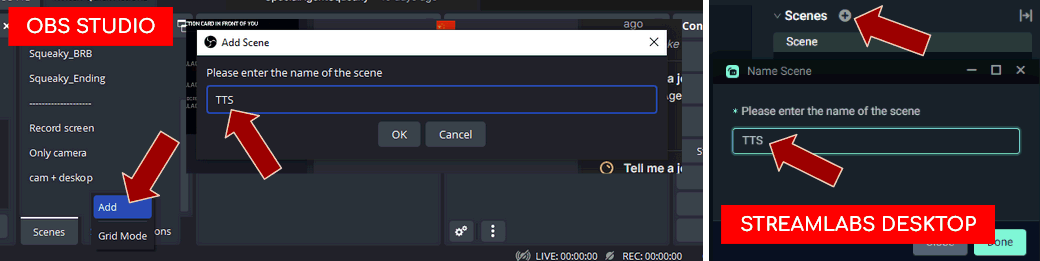
Step 3 - Add a new browser source
Right click on the newly created scene and a new browser source and then enter a name.
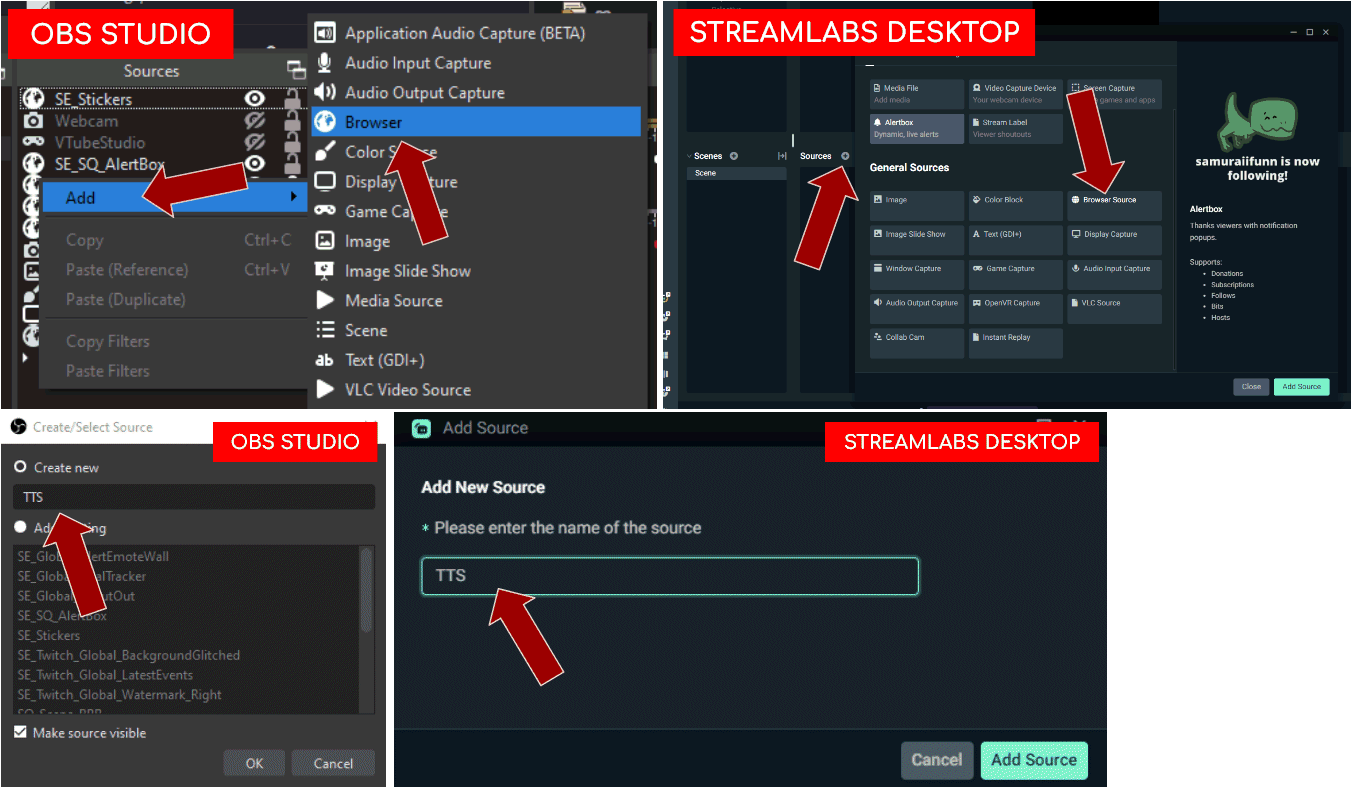
Step 4 - Paste in the browser source URL
Paste in the browser source URL you copied earlier.
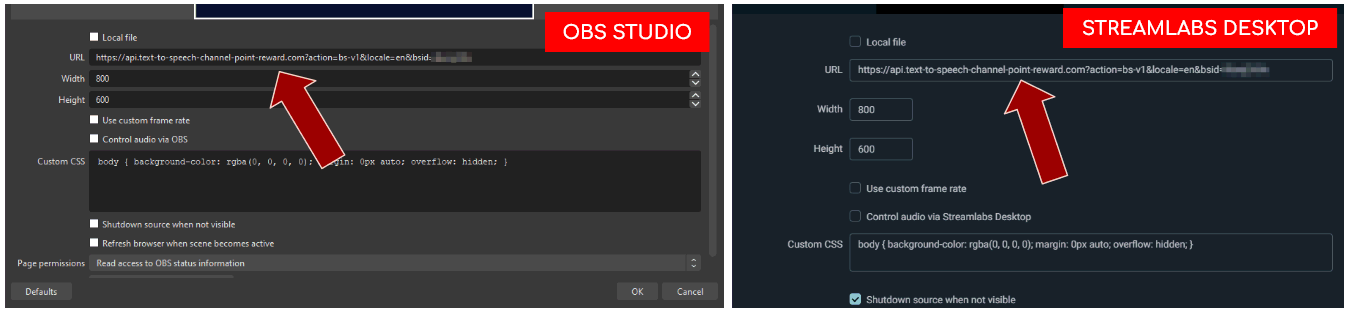
Step 5 - Control audio
Check "Control audio" so that the Text To Speech (TTS) audio appears in the OBS mixer.
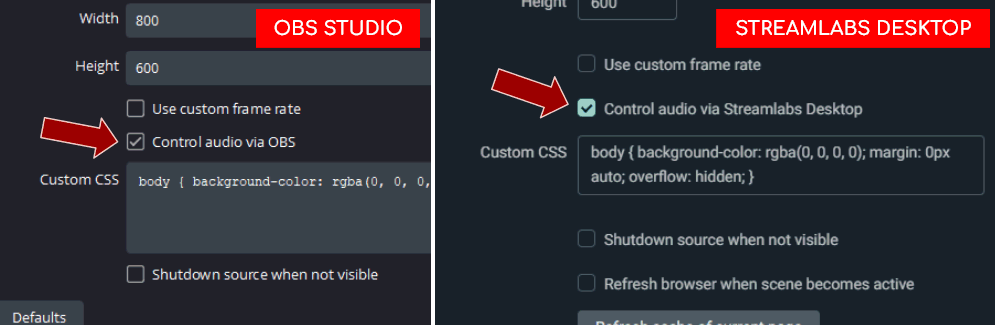
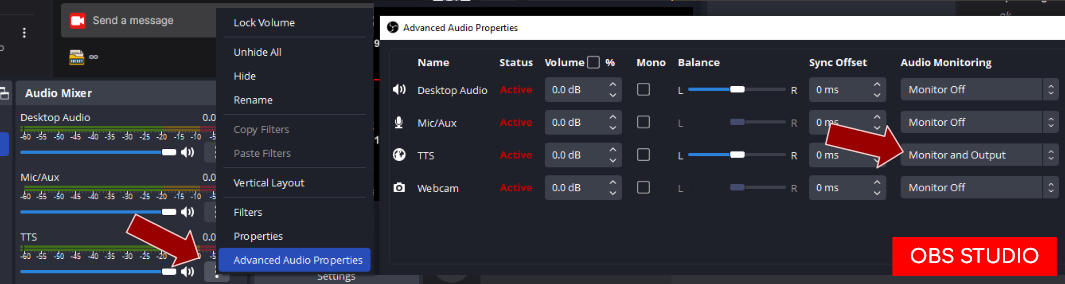
Remember to also add audio monitoring on the browser source, so that you can hear it as well.
Step 6 - Making it global
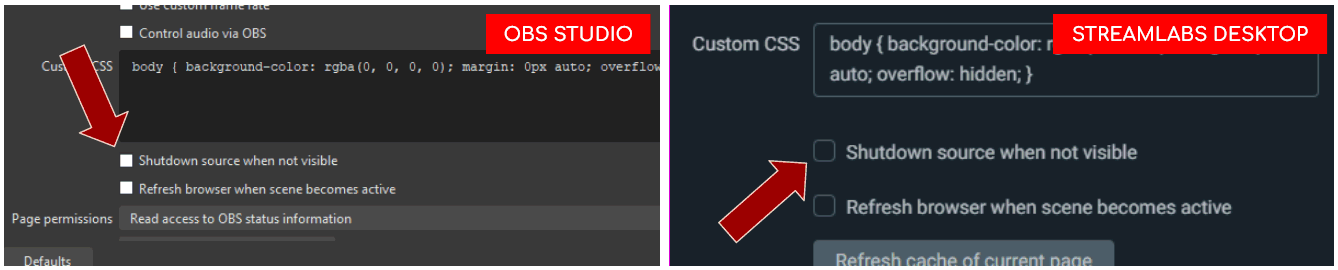
Uncheck "Shutdown source when not visible" so that it doesn't get disabled when you switch scenes.
Step 7 - Interact
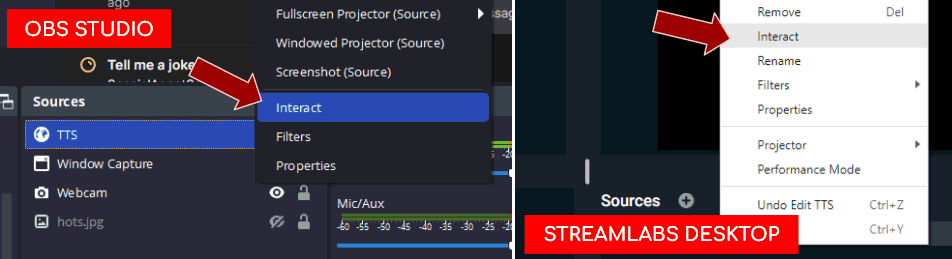
In order to interact with the client, simply right click on the browser source and select "Interact".
You can now login and do all your settings. Since you made the browser source global, you are free to switch scenes as well without any problems.
Guide written 2022-11-02