
This guide assumes that you have already created a Text To Speech Twitch channel point reward.
I am also doing this guide on an Android, however the steps apply if you are using an iPhone.
Step 1 - Install Streamlabs Live from the store and then launch it
If you haven't already, you need to install the Streamlabs Live app from the store and then launch it.

Step 2 - Connect to Twitch
In order to get access to additional Account settings, we then need to either connect to our Streamlabs account or to Twitch directly.

Step 3 - Open up advanced settings
Once you have connected to your account, click on the hamburger menu to open up "Settings" and then scroll down to "Go to advanced settings".

Step 4 - Open the Editor
You should now see an "Editor" button. Click on that to open up the Editor.

Step 5 - Add a new layer
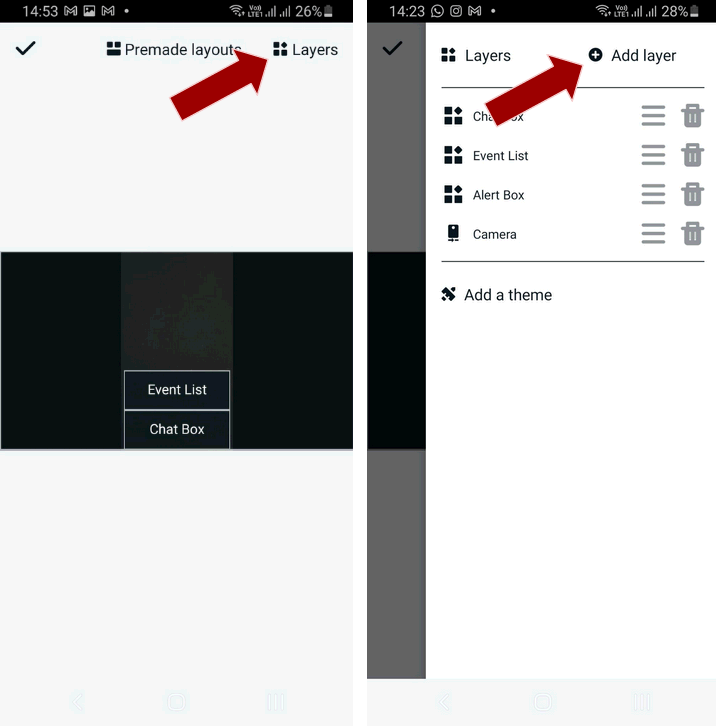
In the top right corner tap on "Layers" to open up the Layers menu to see all your current layers. Then click on "Add layer" to create a new layer.
Step 6 - Add a custom item
Click on "Add a custom item" and then on "Add a URL". Then paste in your browser source URL for your Text To Speech Twitch channel point reward.

Step 7 - Testing
You should now see your browser source as a custom item in the editor. All you have to do now is to do a test redemption of your Text To Speech Twitch channel point reward and you should hear the text on your phone.

Guide written 2022-11-21