
Community-Powered Free AI Tools, TTS and APIs for Twitch Streamers

How to add Text To Speech (TTS) in Streamlabs Desktop

Here is a quick guide on how to add the free Text To Speech (TTS) client into Streamlabs Desktop!
Home How-To Guides How to add Text To Speech (TTS) in Streamlabs Desktop

Step 1 - Open the Layout Editor

Start by opening up the Editor in Streamlabs Desktop and then click on Layout Editor.
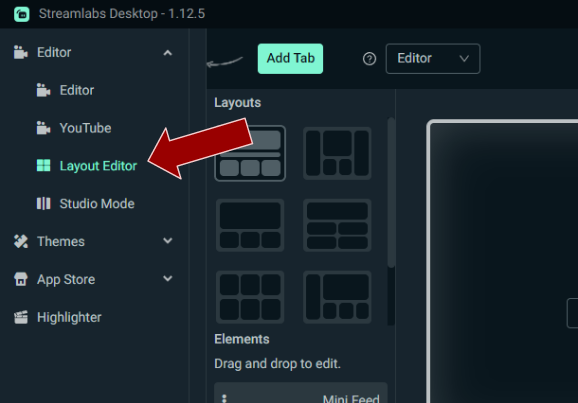
Opening the layout editor in Streamlabs Desktop

Step 2 - Add a Website element

Scroll down until you see the Website element, drag it into your layout and then paste in the client URL. You can find your browser source URL in your PotatoHotDog dashboard.
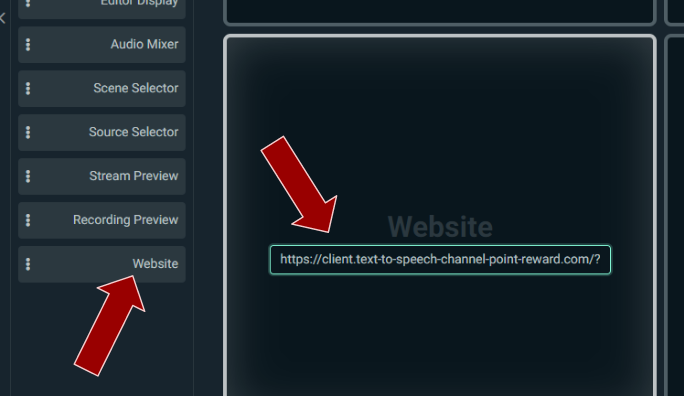
Adding a website element in the Streamlabs Desktop layout

Step 3 - Done

As the final step, simply save your layout and you will now have the free Text To Speech (TTS) client in Streamlabs Desktop!
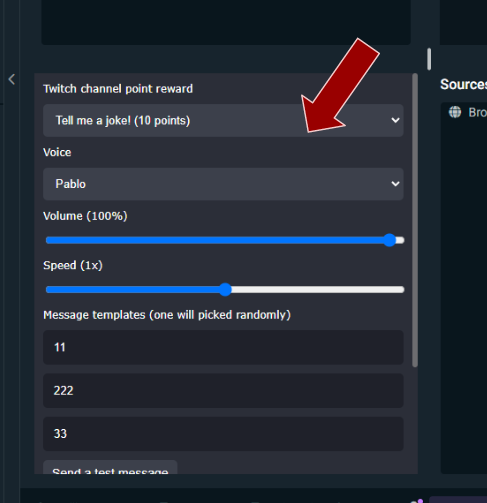
Save settings and done